charging TESLA MODEL S 2018 Owner's Manual
[x] Cancel search | Manufacturer: TESLA, Model Year: 2018, Model line: MODEL S, Model: TESLA MODEL S 2018Pages: 195, PDF Size: 5.51 MB
Page 4 of 195
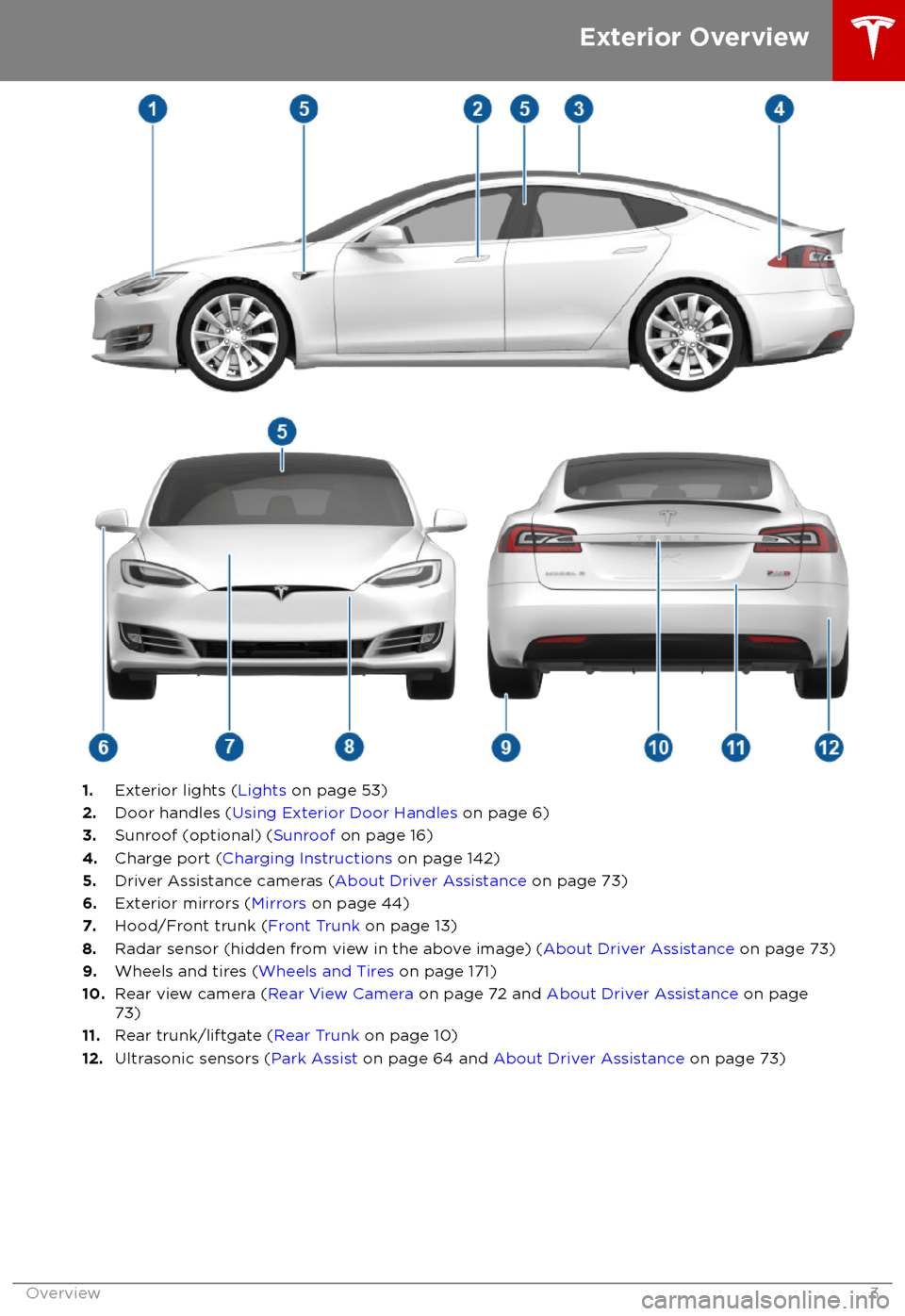
1.Exterior lights ( Lights on page 53)
2. Door handles ( Using Exterior Door Handles on page 6)
3. Sunroof (optional) ( Sunroof on page 16)
4. Charge port ( Charging Instructions on page 142)
5. Driver Assistance cameras ( About Driver Assistance on page 73)
6. Exterior mirrors ( Mirrors on page 44)
7. Hood/Front trunk ( Front Trunk on page 13)
8. Radar sensor (hidden from view in the above image) ( About Driver Assistance on page 73)
9. Wheels and tires ( Wheels and Tires on page 171)
10. Rear view camera ( Rear View Camera on page 72 and About Driver Assistance on page
73)
11. Rear trunk/liftgate ( Rear Trunk on page 10)
12. Ultrasonic sensors ( Park Assist on page 64 and About Driver Assistance on page 73)
Exterior Overview
Overview3
Page 72 of 195

The map displays superchargers
only.The map displays superchargers,
destination chargers, and visited
chargers. In situations where a
charging location may not be
reachable based on your currently
available driving range, its
associated icon on the map
displays as semi-transparent.
When you are at risk of driving beyond the
range of known charging locations, the
touchscreen displays a message giving you the opportunity to display a list of charging
locations that are within range. When you
select a charging location from the list,
Model S provides navigation instructions and
the turn-by-turn direction list displays the
predicted amount of energy that will remain
when you arrive at the charging destination.
In addition to the message that displays when
you are at risk of driving beyond the range of
known charging locations, a warning symbol
displays on the range assurance icon:
Touch to display a search list of
charging locations that are
estimated to be within your driving
range. Then touch a location in the
search list to navigate to it.Based on the amount of energy
remaining in your Model S, there
are no known charging locations
within your driving range.
Getting Maximum Range
Driving71
Page 130 of 195

Predicting Energy Usage
When navigating to a destination, Model S
helps you anticipate your charging needs by
calculating the amount of energy that will
remain when you reach your destination. The
calculation is an estimate based on driving
and environmental factors such as predicted
speed and elevation changes. The touchscreen displays this calculation at the bottom of the
turn-by-turn direction list when you
firstinitiate the navigation route. Thereafter, you
can display it by touching the area at the bottom of the turn-by-turn direction list.
Throughout your route, Model S monitors
energy usage and updates the calculation as
needed. A popup warning displays at the
bottom of the turn-by-turn direction list in
these situations:
Page 140 of 195
Charging EquipmentCharging equipment designed
specifically to
charge your Model S is available from Tesla. A
Tesla Wall Connector, which installs in your
garage, is the fastest way to charge Model S at
home.
In several market regions, Model S is equipped
with a Mobile Connector and the adapter(s)
you need to plug into commonly used power outlets. When using the Mobile Connector,
first plug the Mobile Connector into the power
outlet, and then plug in Model S. For more information about your Mobile Connector, see
the Mobile Connector Owner
Page 142 of 195

Caution: Do not use the Battery as a
stationary power source. Doing so voids
the warranty.
Battery Information
Charging141
Page 145 of 195

Changing Charge Settings
The charge settings screen displays on the
touchscreen whenever the charge port door is
open.
To display charge settings at any time, touch
the Battery icon on the top of the
touchscreen, or touch Controls > Charging
(located in the upper right portion of the
Controls screen).
Note: The following illustration is provided for
demonstration purposes only and may vary
slightly depending on software version and
market region.
Note: If charging at a Tesla Supercharger, and
paid supercharging is potentially in effect, the
charging screen also displays information
about your previous or current Supercharger
session (see Supercharger Usage Fees and
Idle Fees on page 146).
1. Charge status messages (such as
Charging Scheduled, Charging In
Progress) display here.
2. To adjust the charge limit, touch Set
Charge Limit , and drag the arrow to
change the charge limit setting. The
setting you choose applies to immediate and scheduled charging sessions.
3.Location-specific schedule. With Model S
in Park, set a specific time to begin
charging at the current location. If, at the
scheduled time, Model S is not plugged in
at the location, charging starts as soon as
you plug it in provided you plug it in
within six hours of the scheduled time. If
plugged in after six hours, charging does
not start until the scheduled time on the next day. To override this setting, touchStart Charging or Stop Charging (see
item 4). When you set a scheduled
charging time, Model S displays the set
time on the instrument panel and
touchscreen.
4. Touch to open the charge port door or to
start (or stop) charging.
5. Charging rate per hour, estimated increase
in driving distance (or energy) achieved
so far in this charging session, current
supplied/available from the connected
power supply, and voltage supplied by the
charge cable.
6. The current automatically sets to the
maximum current available from the
attached charge cable, unless it was
previously reduced to a lower level. If
needed, touch the up/down arrows to
change the current (for example, you may
want to reduce the current if you are
concerned about overloading a domestic
wiring circuit shared by other equipment).
It is not possible to set the charging
current to a level that exceeds the
maximum available from the attached charge cable. When you change the
current, Model S remembers the location.
If you charge at the same location, you do
not need to change it again.
Note: For 3-phase charging, the available
current represents the current per phase
(up to 32 amps). During charging, the
right status
flag displays the 3-phase
symbol in front of the displayed current.
Note: If Model S automatically reduced
the current at a charging location because
of
Page 146 of 195

Charging Status
The following illustration is provided for demonstration purposes only and may vary slightly
depending on the software version and market region.
1. Charging status information. For example, when Model S is charging, it displays the time
remaining until fully charged at the currently selected charge level. When a charging session is
scheduled, it displays when charging starts.
2. Total estimated driving distance (or energy) available. To choose between displaying distance
or energy percentage, touch Controls > Settings > Language & Units > Energy & Charging .
Note: A portion of the battery image may appear blue. This indicates that a small portion of
the energy stored in the battery is not available because the battery is cold. This is normal and no reason for concern. When the battery warms up, the blue portion no longer displays.
3. Charging rate per hour.
4. Estimated increase in driving distance (or energy) achieved so far in this charging session.
5. Current supplied/available from the connected power supply (see Changing Charge Settings
on page 144).
If connected to a 3-phase power supply, the available current represents the
current per phase and the 3-phase symbol displays.
6. Voltage supplied by the charge cable.
Note: If Model S is charging and detects unexpected
Page 147 of 195

Supercharger Usage Fees and IdleFees
When charging using a Tesla supercharger,
PAID SUPERCHARGING information displays at the bottom of the charging screen. Thisinformation includes the location, the time
that charging started, and an estimate of how
much the session will cost. When you stop
charging, the
final cost displays until a new
Supercharging session begins. If free charging
is applicable, the cost displays as zero.
When charging at a Tesla supercharger, you
are subject to idle fees. Idle fees are designed
to encourage drivers to move their vehiclefrom the Supercharger when charging iscomplete and are in
effect whenever at least
half of the Superchargers at a site are
occupied. The Tesla mobile app
notifies you
when charging nears completion, and again when charging is complete. Additional
notifications are sent if idle fees are incurred.
Idle fees are waived if you move your vehicle
within
five minutes of charging completion.
Log into your Tesla Account to view fees and
details about Supercharger sessions, track the
remaining balance of free credits, set up a payment method, and make payments. Once a
payment method is saved, fees are automatically paid from your account.
Charging Instructions
146Model S Owner
Page 155 of 195
Cleaning the ExteriorTo prevent damage to the paint, immediately
remove corrosive substances (bird droppings, tree resin, dead insects, tar spots, road salt,
industrial fallout, etc.). Do not wait until
Model S is due for a complete wash. If
necessary, use denatured alcohol to remove
tar spots and stubborn grease stains, then
immediately wash the area with water and a
mild, non-detergent soap to remove the
alcohol.
Follow these steps when washing the exterior
of Model S:
1. Rinse Thoroughly
Before washing,
flush grime and grit from
the bodywork using a hose. Flush away
accumulations of mud in areas where
debris easily collects (such as wheel
arches and panel seams). If salt has been used on the highways (such as during
winter months), thoroughly rinse all traces of road salt from the underside of thevehicle.
2. Hand Wash
Hand wash Model S using a clean soft
cloth and cold or lukewarm water
containing a mild, high-quality car
shampoo.
3. Rinse with Clean Water
After washing, rinse with clean water to
prevent soap from drying on the surfaces.
4. Dry Thoroughly and Clean Exterior Glass
After washing and rinsing, dry thoroughly
with a chamois.
Clean windows and mirrors using an automotive glass cleaner. Do not scrape,
or use any abrasive cleaning
fluid on glass
or mirrored surfaces.
Cautions for Exterior CleaningCaution: Do not use windshield treatmentfluids. Doing so can interfere with wiper
friction and cause a chattering sound.Caution: Do not use hot water or
detergents.Caution: Do not wash in direct sunlight.Caution: If using a pressure washer,
maintain a distance of at least 30 cm
between the nozzle and the surface of
Model S. Keep the nozzle moving and do
not concentrate the water jet on any one
area.Caution: Do not aim water hoses directly
at window, door or hood seals, or through
wheel apertures onto brake components.Caution: Avoid using tight-napped or
rough cloths, such as washing mitts.Caution: If washing in an automatic car
wash, use Touchless car washes only. These car washes have no parts (brushes,
etc.) that touch the surfaces of Model S.
Using any other type of car wash could
cause damage that is not covered by the
warranty.Caution: Ensure the wipers are off before
washing Model S to avoid the risk of
damaging the wipers.Caution: Do not use chemical based
wheel cleaners. These can damage the
finish on the wheels.
Caution: Avoid using a high pressure
power washer on the camera(s) or
parking sensors (if equipped) and do not
clean a sensor or camera lens with a
sharp or abrasive object that can scratch
or damage its surface.Warning: Never spray liquid at a high
velocity (for example, if using a pressure
washer) towards the charge port while
Model S is charging. Failure to follow
these instructions can result in serious
injury or damage to the vehicle, charging
equipment, or property.
Cleaning
154Model S Owner
Page 189 of 195

AABS (Anti-lock Braking System) 60
absolute speed limit 97
Acceleration (dual-motor) 104
Acceleration settings 67
access panel, removing 159accessoriesplugging into power socket 122
adaptive headlights 56
air circulation 112
air conditioning 111
air distribution 112
air
filter 115
air suspension 118
air vents 115
airbag, front passenger, disabling 37
airbags 35
alarm 132
all-season tires 151
always connected, setting 70
anti-lock braking (ABS) 60
audioplaying files 119
steering wheel buttons 41
volume control 119
Auto High Beam 56
Auto Lane Change 85
auto-raising suspension 117
automatic emergency braking 94
Autopark 87
Autopilot components 73
Autosteer 82
average range 70
B backup camera 72
battery (12V)complete discharge 140specifications 170Battery (high voltage)care of 140
coolant 159
specifications 170
temperature limits 140
battery (key), replacing 5
blind spot warning 91
Bluetoothdevices, playing audio files from 122
general information 124
phone, pairing and using 124
body repairs 163
body touch up 156
brake
fluid replacement 147
brakesautomatic in emergencies 94fluid level 160brakes (continued)overview of 60specifications 170
brightness of displays 107
C
Cabin Overheat Protection setting 107
cabin temperature control 111
Calendar app 131
camera (rear view) 72
cameras (autopilot) 73
car cover 156
car status, displaying 41, 42
car washes 154
cargo area 11
cargo volume 168
carpets, cleaning 155
CE
certifications 185
CHAdeMO 139
chains 151
change of ownership 110
charge port 142
charge port light 143
chargingcharge settings 144
components and equipment 138
instructions 142
public charging stations 139
scheduling 144
status of 145
charging locations, finding 127
child protectiondisabling liftgate and rear door handles 7
disabling rear window switches 9child seatscleaning 155
disabling front passenger airbag 37
installing and using 24
Tesla built-in rear facing 31
Chill acceleration 67
cleaning 154
climate controls 111
Climate Timer 114
Cold Weather controls 104
collision avoidance assist 93
console12V power socket 122
cup holders 17
USB ports 122
consumption chart 70
contact informationroadside assistance 177coolantBattery, checking level of 159
Battery, replacement interval 147
copyrights 182
Creep 104
Index
188Model S Owner